Everyone loves shortcuts! Illustrator shortcut keys save time and help you complete tasks much faster. Especially for repetitive tasks, knowing the right shortcuts will boost your efficiency and speed. Below are 15 essential Illustrator keyboard shortcuts for Mac and Windows to help you work smarter.
15 Pro tip for Illustrator shortcut keys for Mac and Windows
1. Toggle Fill Type
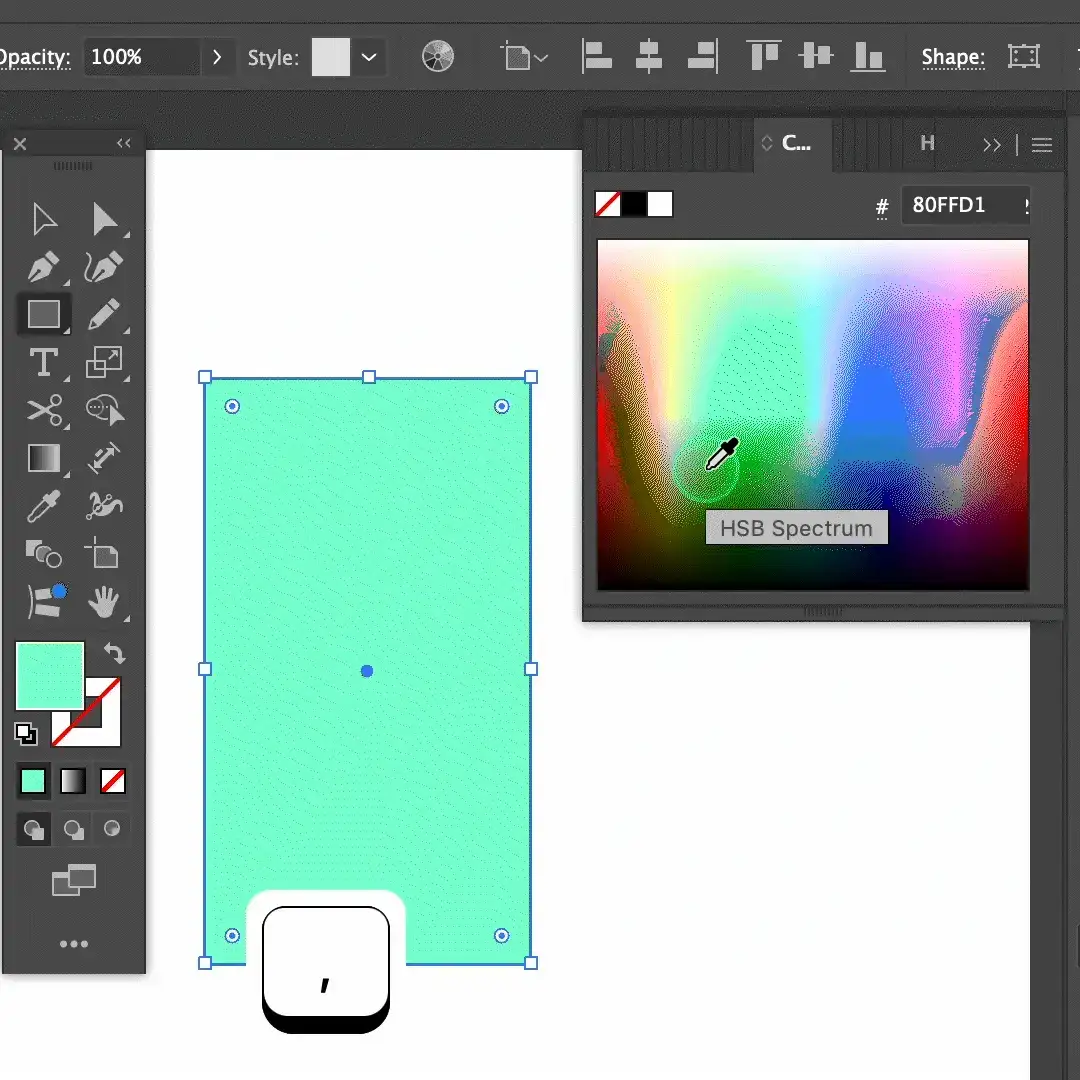
Solid Color (<)
Gradient (>):
None (/):
Pro Tips:
- Customize Gradients: Use
Ctrl + F9 (Windows) or Command + F9 (Mac) to fine-tune gradient colors and directions.
- Transparent Overlays: Using None (
/) is handy for creating transparent overlays or clipping masks.
2. Spell Check
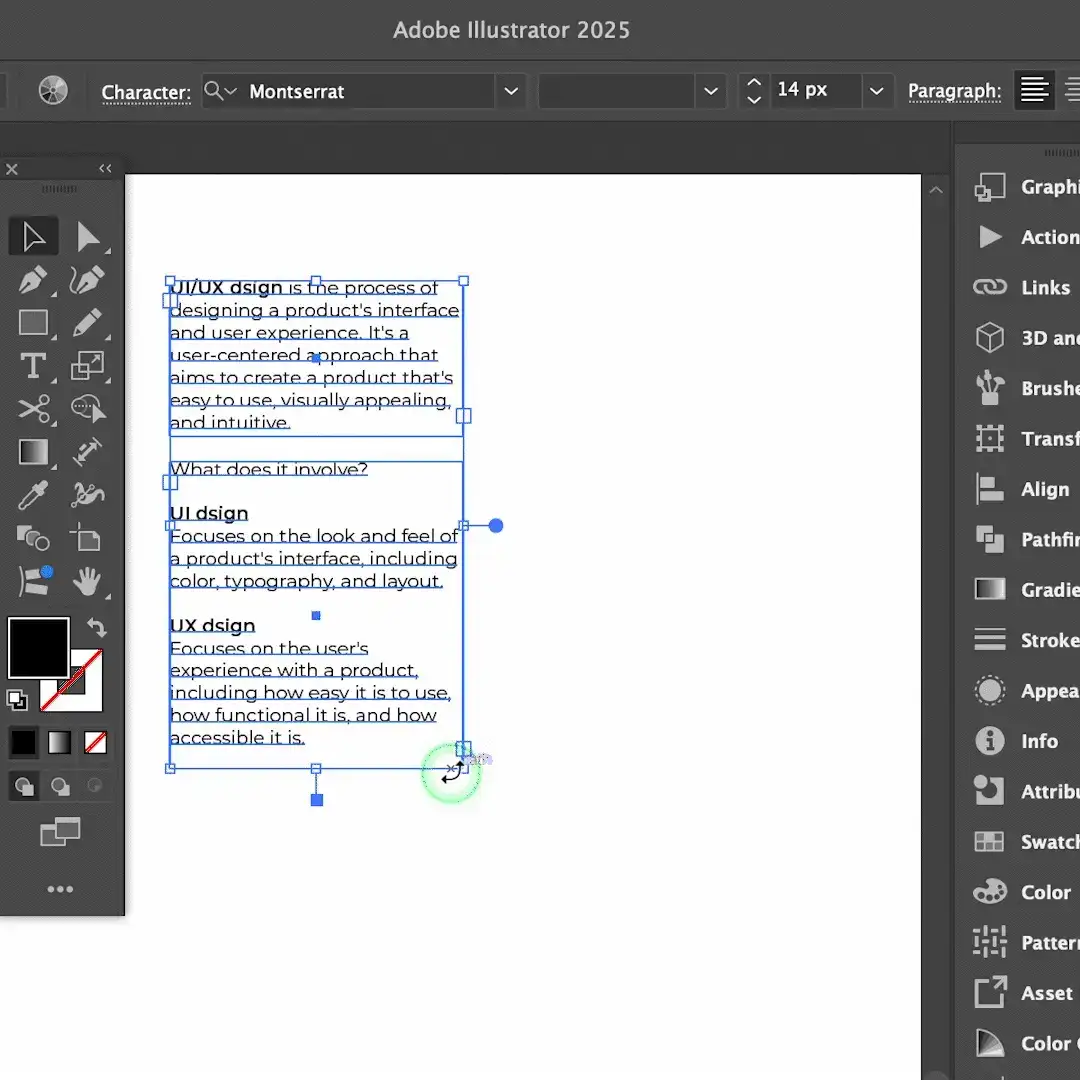
- Mac:
Cmd + I
- Windows:
Ctrl + I
Pro Tips:
- Check Multiple Text Boxes: The spell check tool scans all active text objects across artboards.
- Expand Your Dictionary: Add frequently used words to Illustrator’s dictionary.
- Combine with Find & Replace: After spell check, use
Cmd + F (Mac) or Ctrl + F (Windows) to replace recurring typos.
3. Swap Fill and Stroke

Pro Tips:
- Use with Transparent Properties: Swapping fills and strokes can create minimalist line art.
- Quick Iterations: Great for wireframes and mockups.
4. Change Character & Paragraph Properties

Open Character Panel:
- Mac:
Cmd + T
- Windows:
Ctrl + T
Open Paragraph Panel:
- Mac:
Opt + Cmd + T
- Windows:
Alt + Ctrl + T
Pro Tips:
- Combine Panels: Use both for complete text styling control.
- Keyboard Navigation: Arrow keys adjust font settings quickly.
5. Change Font Size

Increase Font Size:
- Mac:
Shift + Cmd + >
- Windows:
Shift + Ctrl + >
Decrease Font Size:
- Mac:
Shift + Cmd + <
- Windows:
Shift + Ctrl + <
Pro Tips:
- Hold Alt/Option for Finer Adjustments
- Test Text in Context
- Pair with Line Spacing Adjustments
6. Text Alignment
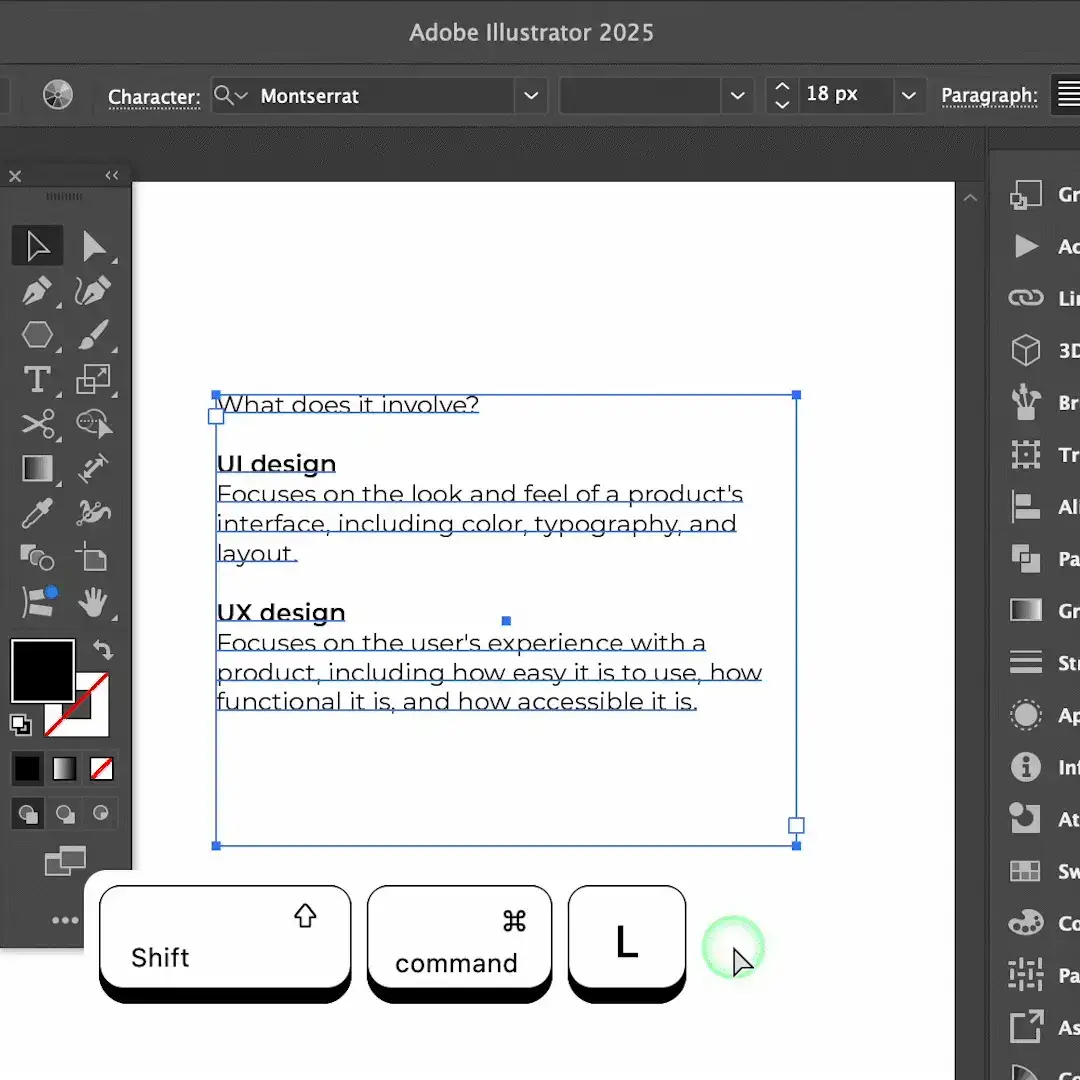
Align Left:
- Mac:
Shift + Cmd + L
- Windows:
Shift + Ctrl + L
Align Right:
- Mac:
Shift + Cmd + R
- Windows:
Shift + Ctrl + R
Align Center:
- Mac:
Shift + Cmd + C
- Windows:
Shift + Ctrl + C
Justify Text:
- Mac:
Shift + Cmd + J
- Windows:
Shift + Ctrl + J
Pro Tips:
- Use Guides for Precision
- Right Alignment for Visual Impact
7. Lock Layer
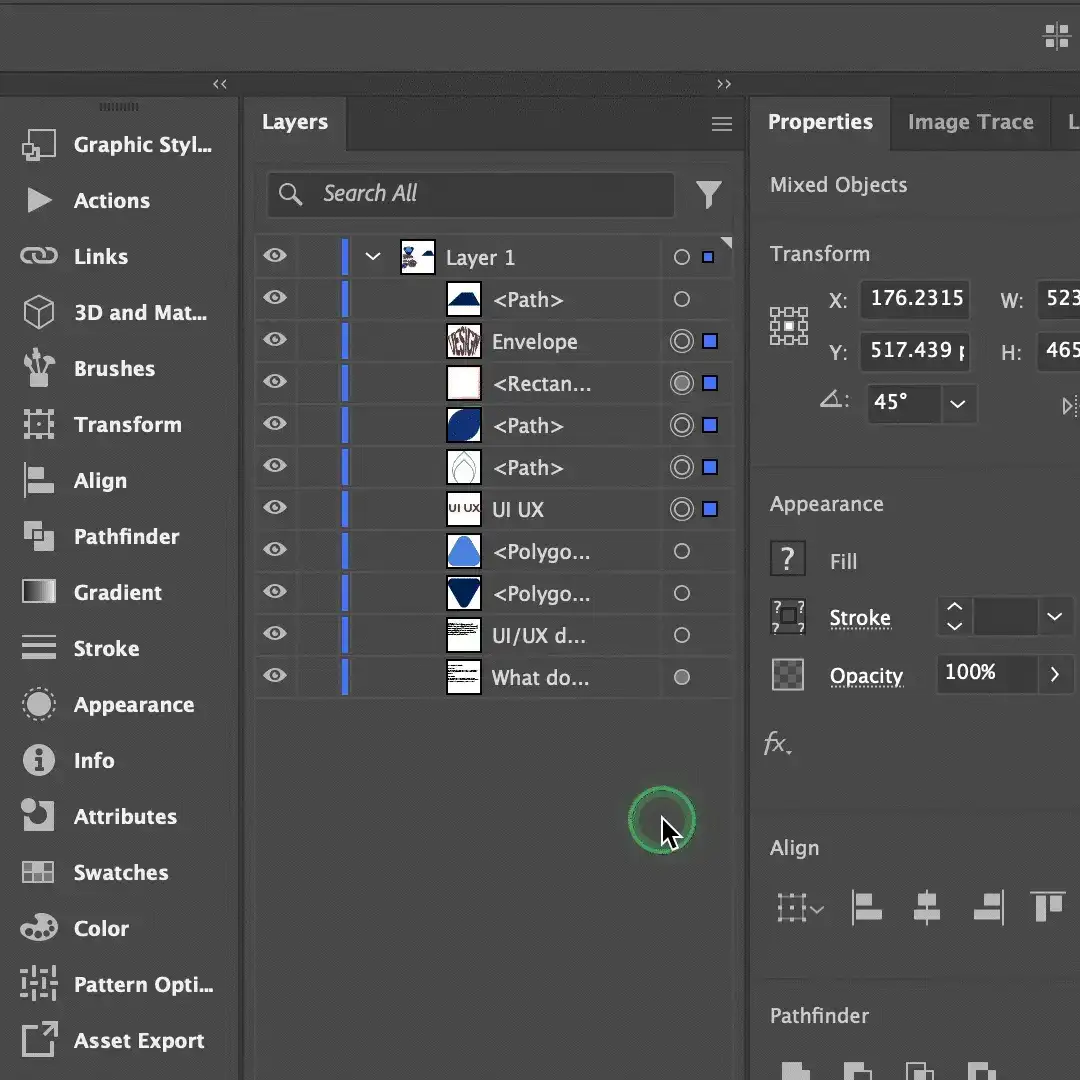
Lock Layer:
- Mac:
Cmd + 2
- Windows:
Ctrl + 2
Unlock All Layers:
- Mac:
Opt + Cmd + 2
- Windows:
Alt + Ctrl + 2
Pro Tips:
- Lock Guides: Use
Cmd + Alt + ; (Mac) or Ctrl + Alt + ; (Windows).
8. Eyedropper Tool
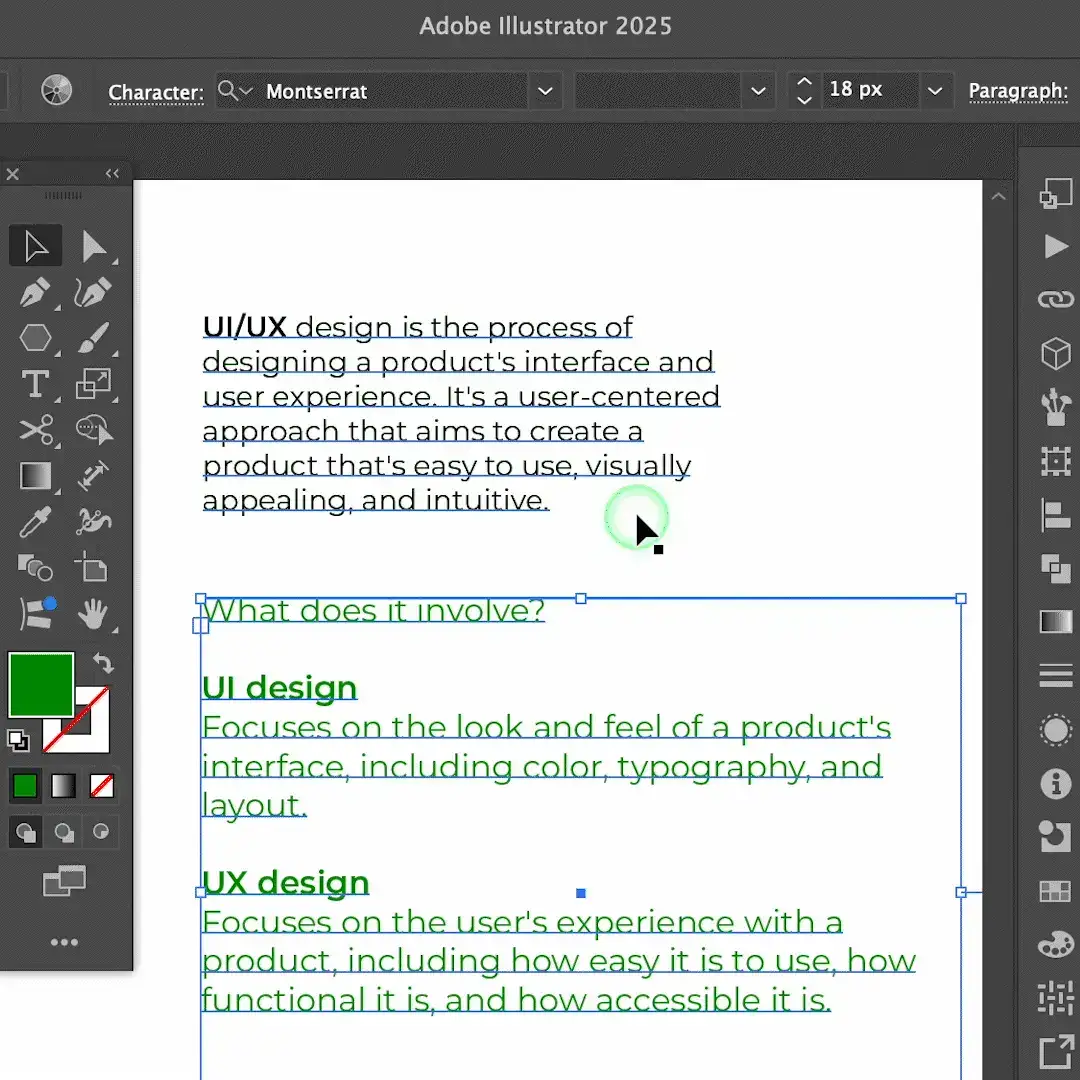
Pick Only Color from Text:
- Mac & Windows:
Shift + Left Click
Pro Tips:
- Use with Gradients
- Sample from External Sources
9. Create Outlines

- Mac:
Shift + Cmd + O
- Windows:
Shift + Ctrl + O
Pro Tips:
- Duplicate Text Before Outlining
- Combine with Pathfinder for Custom Typography
10. Blend Effect
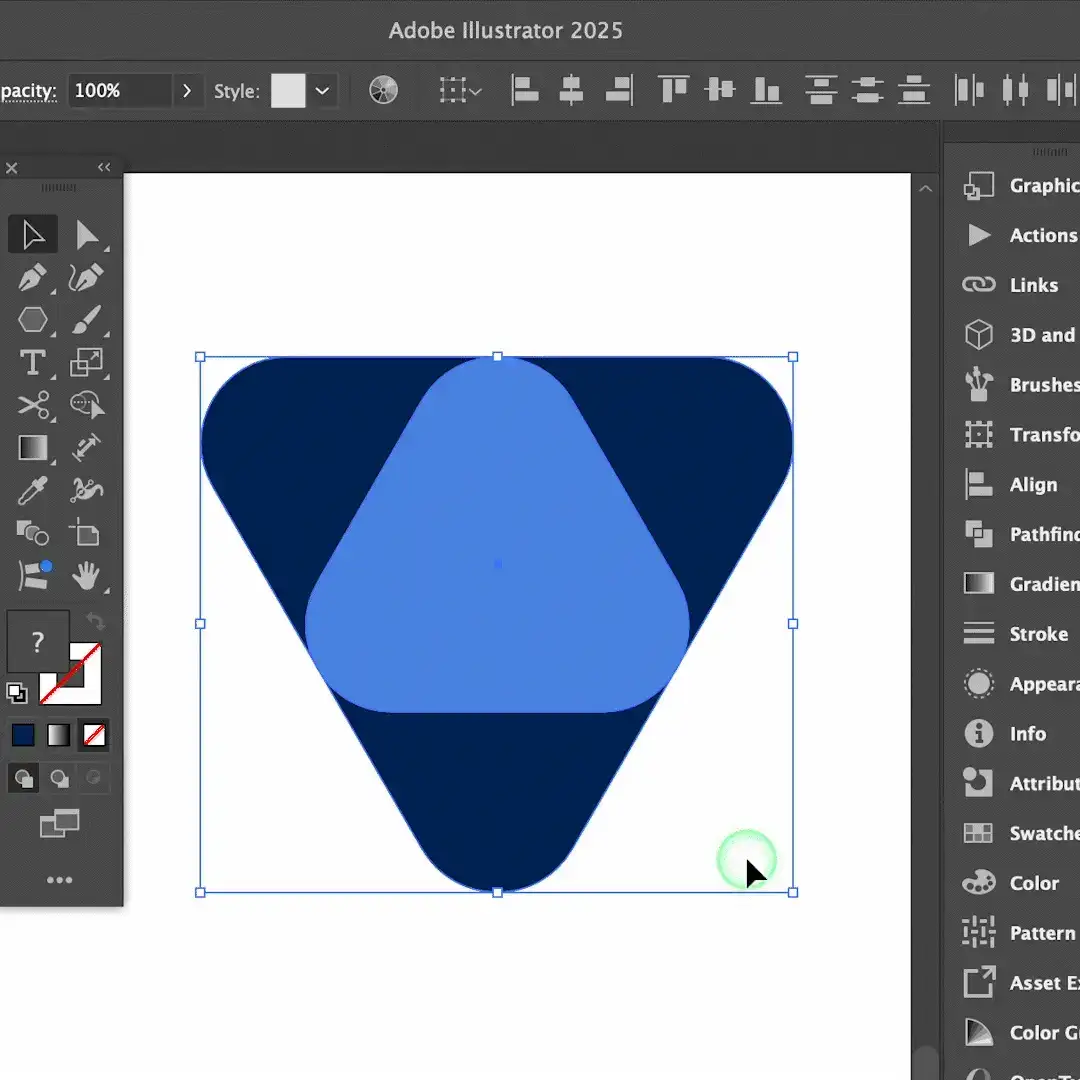
- Mac:
Opt + Cmd + B
- Windows:
Alt + Ctrl + B
Pro Tips:
- Customize the Steps in Blend Options
- Align to Path for Unique Effects
11. Shape Builder Tool
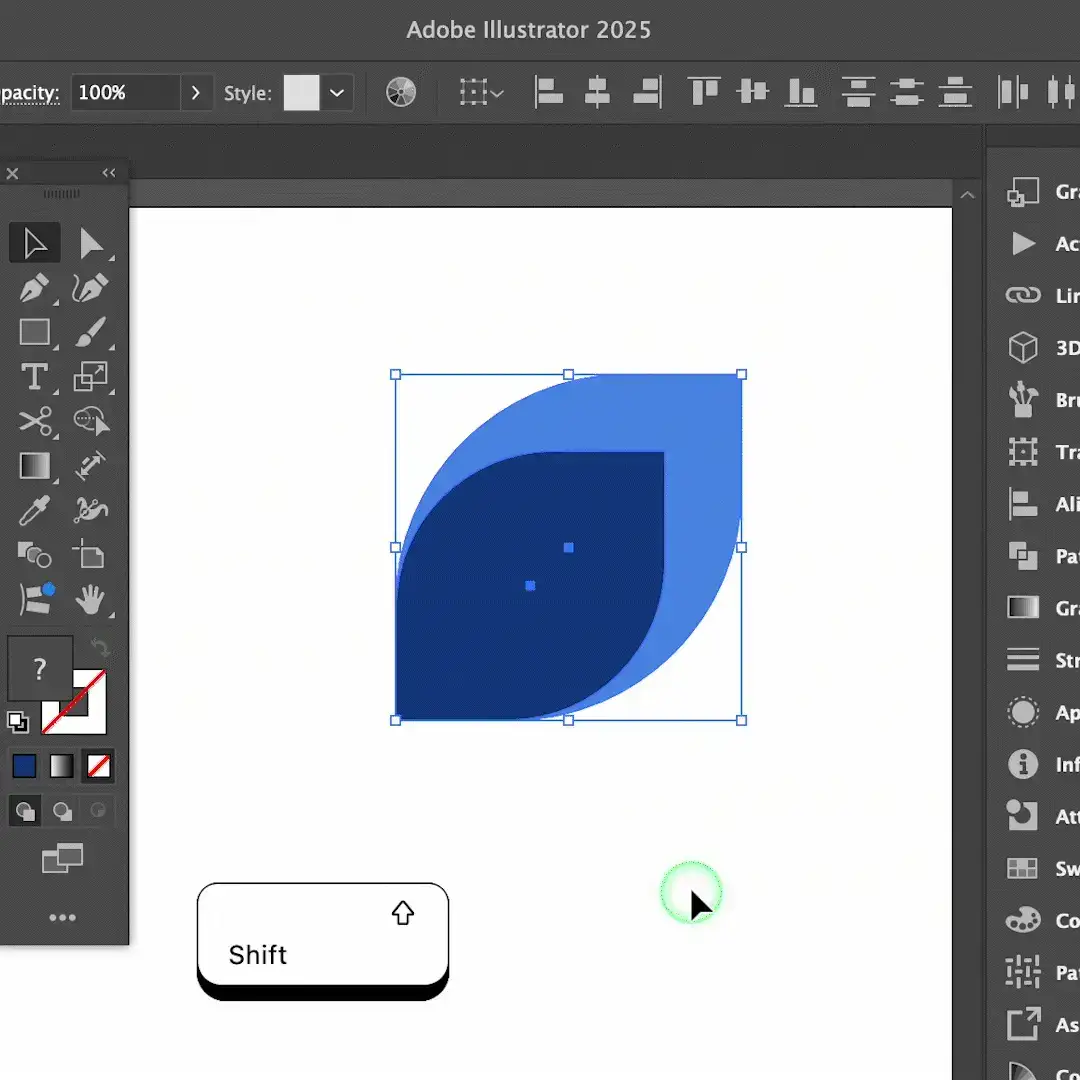
Pro Tips:
- Preview Before Combining Shapes
- Hold Shift for Precision
12. Width Tool
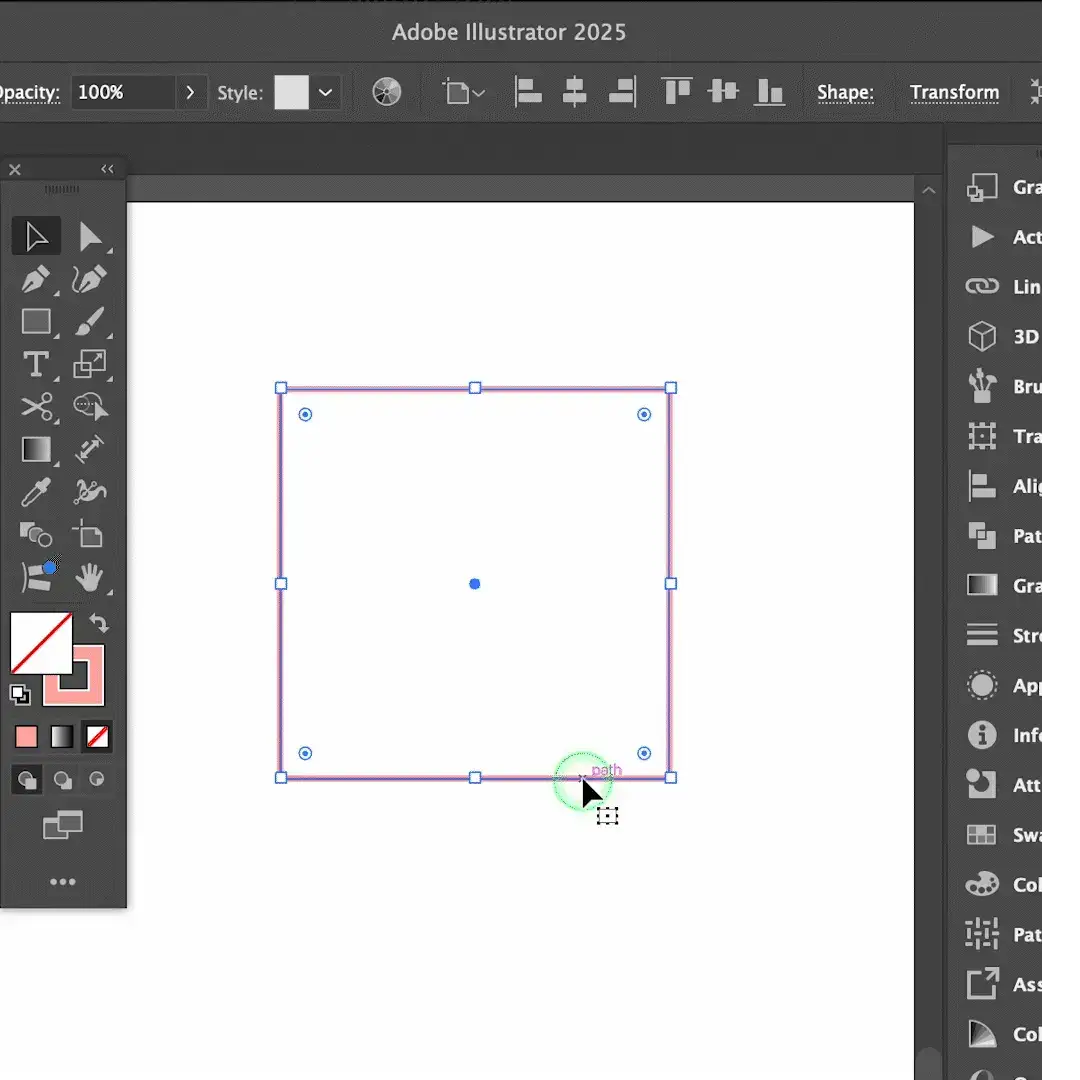
Pro Tips:
- Symmetry Adjustments
- Combine with Appearance Panel for Unique Effects
13. Envelope Distort

- Mac:
Opt + Cmd + C
- Windows:
Alt + Ctrl + C
Pro Tips:
- Group Objects Before Distorting
- Edit Envelope Shape After Applying Distortion
14. Paste in Front & Back

Paste in Front:
- Mac:
Cmd + F
- Windows:
Ctrl + F
Paste in Back:
- Mac:
Cmd + B
- Windows:
Ctrl + B
Pro Tips:
- Combine with Align Tools
- Use Paste in Place (Cmd + Shift + V / Ctrl + Shift + V)
15. Join Paths
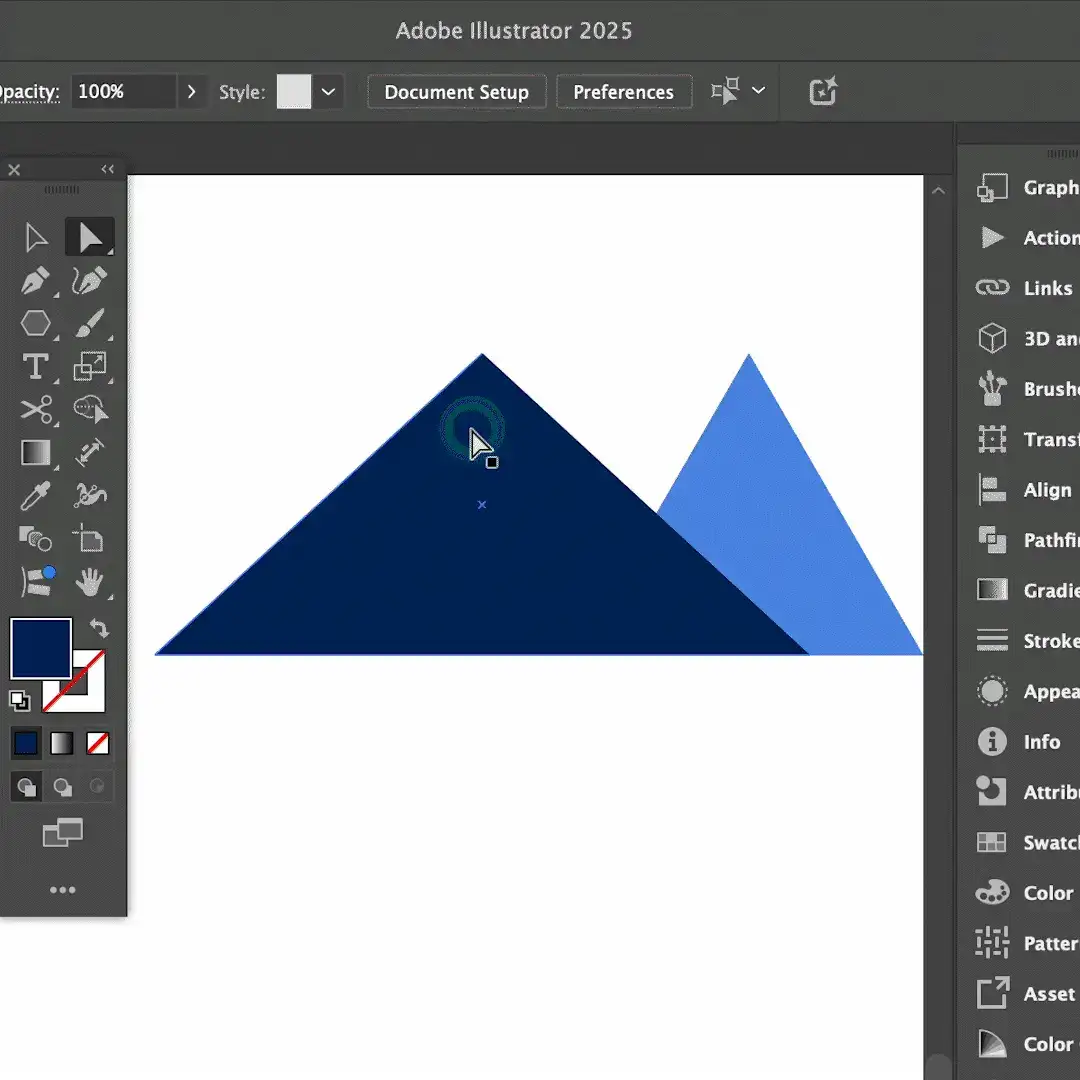
- Mac:
Cmd + J
- Windows:
Ctrl + J
Pro Tips:
- Refine with the Pen Tool
- Use the Smooth Tool for Better Transitions
Conclusion
Mastering these 15 Illustrator shortcut keys will help you work faster and more efficiently. At Lollypop Design Studio, we always strive to find ways to streamline the design process, and these shortcuts are just one example of how you can boost your productivity. If you found this guide helpful, share it with your friends!
Have Any Questions?
1. What is the V shortcut in Illustrator?
V activates the Selection Tool to select entire elements.
2. What is Ctrl + T in Illustrator?
- It shows or hides the Character panel.
3. What does Ctrl + H do?
- It hides or shows selections and guides.
4. How to fill color in Illustrator?
- Fill and Stroke Option
- Eyedropper Tool
- Live Paint Bucket Tool
- Color Panel/Swatches
5. How to Lock a Layer in Illustrator?
- Open the Layers panel (
Window > Layers).
- Find the layer you want to lock.
- Click the empty square next to the layer to lock it.
- Click the lock icon again to unlock.