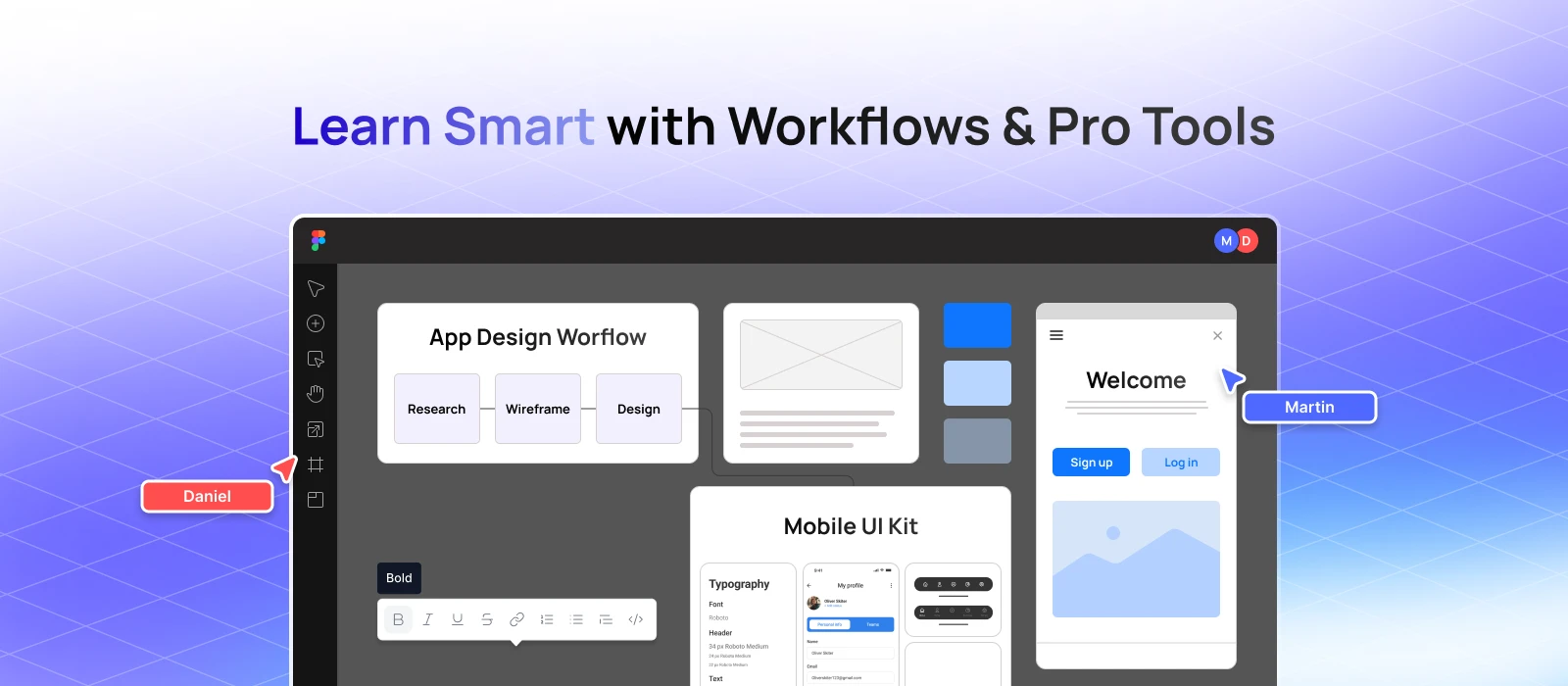

If you’re designing an EdTech app, you’ve probably realized how complex things can get—dashboards, quizzes, assignments, and real-time classes. Each feature has its own user flow, accessibility needs, and role-based interactions that can quickly become overwhelming to users without a clear structure. That’s where Figma education templates come in.
Think of them as your design shortcuts: pre-built e-learning app layouts and UI components tailored specifically for digital learning experiences. Whether you’re prototyping a quiz app or building an entire learning management design from scratch, these templates help you stay organized, consistent, and way more efficient.
So, let’s get started with designing an online classroom UI.
Designing an online classroom UI involves creating a digital environment that replicates the key functions of a real-life classroom, but with enhanced functionality and greater accessibility. In Figma, this process involves mapping out intuitive layouts for essential features like:
It’s about creating a space that’s not just functional but welcoming and easy to navigate for both students and teachers.
A big part of this also includes optimizing for different devices. That’s where mobile education UI becomes essential. Today’s learners are not tied to desktops; they learn from tablets, smartphones, and laptops. Here, the goal is to design interfaces that seamlessly adapt to screen size and device type, allowing for smooth learning on the go.
Figma’s features, such as reusable components, auto-layout, and interactive prototypes, make it easier to build these experiences quickly and consistently. You can collaborate live with stakeholders, educators, or developers to refine the designs and test real use cases. Ultimately, designing an online classroom UI is about making digital education feel as natural and engaging as the physical classroom.
A student dashboard is the central user interface where learners track their academic journey. It brings together all critical information in one place—assignments, deadlines, course progress, performance metrics, and more. It should feel like a personalized command center that guides the student through their learning experience.
To design a truly effective student dashboard, it’s important to include components that are functional, motivating, and easy to navigate.
With Figma prototyping for students, you can simulate how users will interact with the dashboard in real scenarios. Whether it’s navigating between courses or checking off completed homework, these prototypes allow for better user testing and iteration.
A well-designed student dashboard should feel easy, not overwhelming. It’s all about keeping things clear, cutting down mental clutter, and giving students gentle nudges when they need them. When it’s done right, it doesn’t just help them stay on track—it actually keeps them motivated.
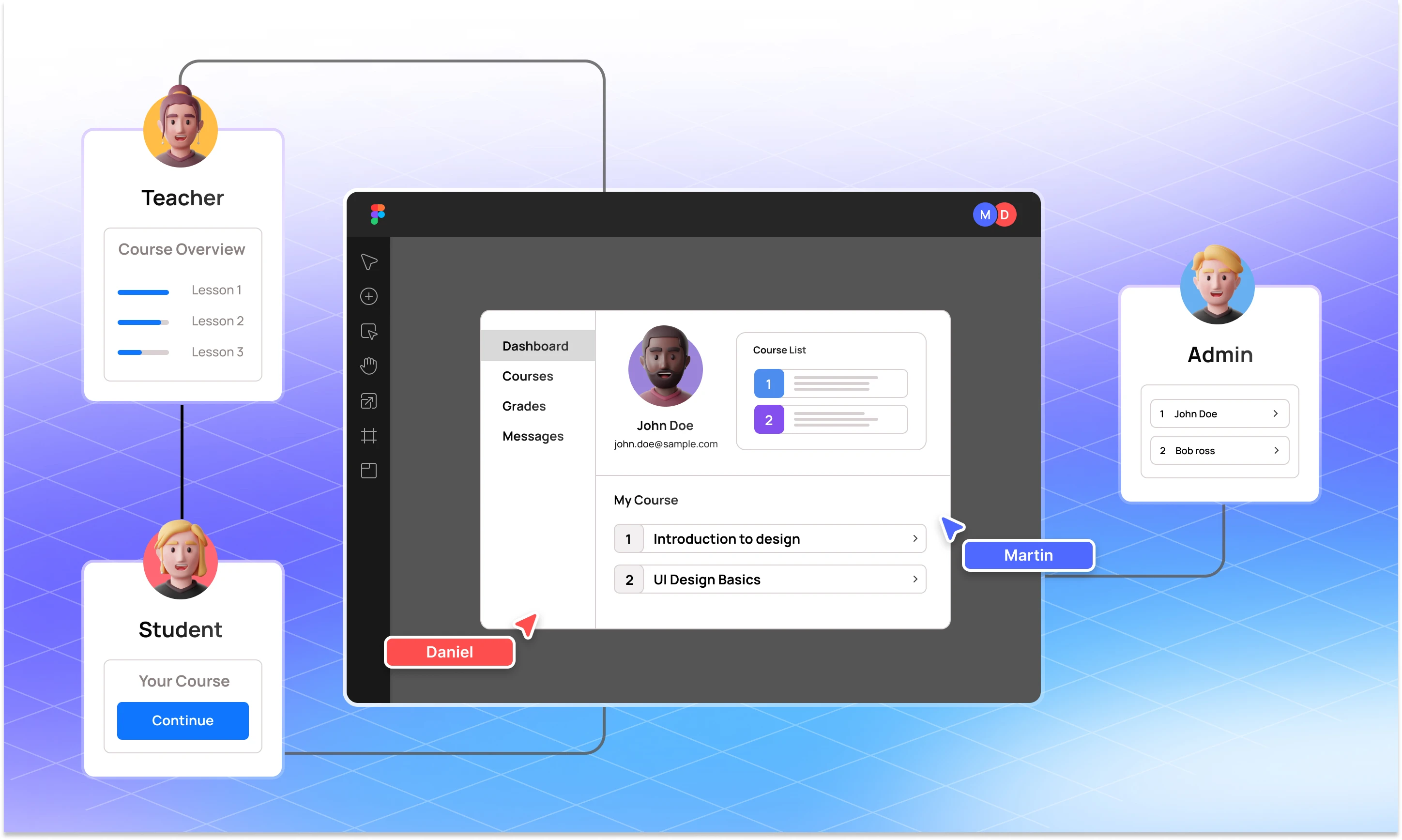
If you’re building a Learning Management System (LMS), you already know it’s no small task. Between teachers, students, and admins—not to mention the mountain of workflows involved—it can quickly get complex. That’s where Figma LMS Interface templates come in to make your life a whole lot easier.
These templates come with ready-made UI components like dashboards, course modules, and assignment screens. Instead of starting from scratch, you get a strong foundation you can customize, save time, stay consistent, and allow you to focus on creating a smoother experience for students and teachers.
To leverage means to use these templates effectively in your design process. It’s not just about copying them but about:
This lets you save time, maintain consistency, and focus on refining UX rather than reinventing basic structures.
You’ll find templates for:
These templates follow common EdTech design patterns and accessibility best practices, so you don’t have to build everything from scratch.
Workflows are the secret sauce of a smooth digital classroom. Figma helps you visualize and test these flows before a single line of code is written.
A workflow is a structured sequence of tasks or interactions. In a classroom setting, this might look like
Teacher uploads assignment → Student receives notification → Student submits work → Teacher reviews → Student gets feedback and a grade.
Now imagine this happening digitally—inside an app or web platform. Everything from notifications to submission forms must be thoughtfully designed. That’s where Figma comes in.
Figma really shines here. It lets you map out the entire workflow visually—step by step—so you can see how everything fits together. You can prototype different user journeys, create separate views for students and teachers, and even simulate how things like submissions, feedback, or notifications will actually work.
Try designing:
Since Figma allows real-time collaboration, teachers and product teams can co-create features together, right inside the file.
When digital classroom workflows are designed thoughtfully, everything just works better. Students feel guided instead of confused, and teachers spend less time wrestling with the platform. The whole experience becomes smoother and more enjoyable. In the end, good workflows make the tech almost invisible, so everyone can focus on what really matters: teaching and learning.
Moving forward, using UI kits for learning platforms is like having a toolbox full of ready-made, beautifully designed parts. You don’t have to build every button, form, or layout from scratch. It’s there; use it effectively.
Here’s what you get when you use UI kits:
Whether you’re building a quiz app wireframe in Figma or laying out an e-learning app layout, a good UI kit helps you stay focused on solving real user problems.
In education apps, clarity and ease of use are everything. Students and teachers don’t want to guess how to navigate a dashboard or submit an assignment. With a standard UI kit, you’re starting from a foundation that already considers best practices in EdTech design patterns, accessibility, and responsiveness.
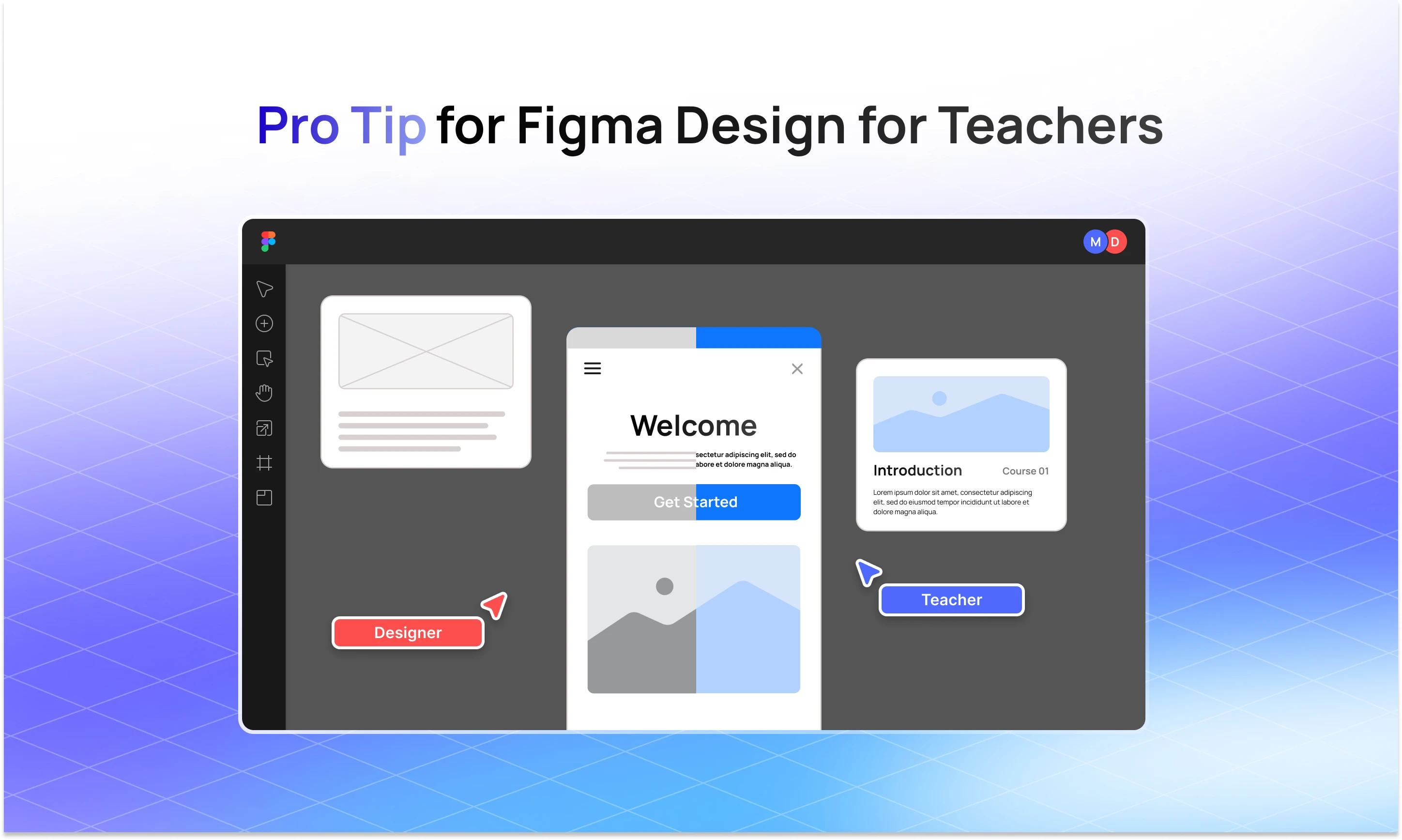
Teachers are often expected to adapt quickly to digital platforms, but that doesn’t mean they’re tech experts. So when you’re designing EdTech tools, your goal should be to minimize friction and maximize usability. That’s where thoughtful Figma design comes in.
“Figma design for teachers” refers to creating dashboards, tools, and workflows that align with a teacher’s daily needs—grading, scheduling, lesson planning, and communicating with students. This section gives you practical advice on designing tools that actually support teachers in those tasks.
Teachers are multitaskers. They jump between prepping lessons, managing classrooms, grading papers, and responding to parents. So your design should:
With Figma, you can build role-based dashboards that show different interfaces for teachers vs. students. You can use components to create streamlined grading panels, attendance tools, and communication modules—and you can test how they function in real-world scenarios using interactive prototypes. When you’re designing with educators in mind, here are a few things to keep in mind:
The less time they spend figuring out how to use your app, the more time they can spend teaching.
At the end of the day, designing for education is about way more than clean layouts or trendy UI. It’s about creating tools that make life easier for teachers and more engaging for students. That’s where Figma education templates really shine—they give you a solid starting point so you’re not building everything from scratch. With the right UI kits for learning platforms, interactive learning interfaces, and smart workflows, you can create an experience that feels like an offline classroom but is more polished, intuitive, and purpose-driven.
Whether you’re putting together a student dashboard, mapping out an LMS, or just wireframing a quick quiz app, these Figma templates help you move faster without sacrificing thoughtfulness. And with Figma’s collaborative features, it’s easier than ever to bring teachers into the process and design with them, not just for them.
So if you’re building for education, start with empathy, design with clarity, and let your tools empower real learning.
Absolutely! You can simulate quizzes, assignments, dashboards, and more—all inside Figma.
Yes! Check out Figma Community or UXCrush for some great free and premium options.
Start with progress tracking, assignment status, personalized performance, and upcoming deadlines.
Teachers can collaborate with designers to test lesson plans, preview dashboards, and even share feedback live.
Totally. Figma’s responsive design features make it ideal for designing mobile-friendly learning apps.